Push notifications from n8n workflows, now a verified node
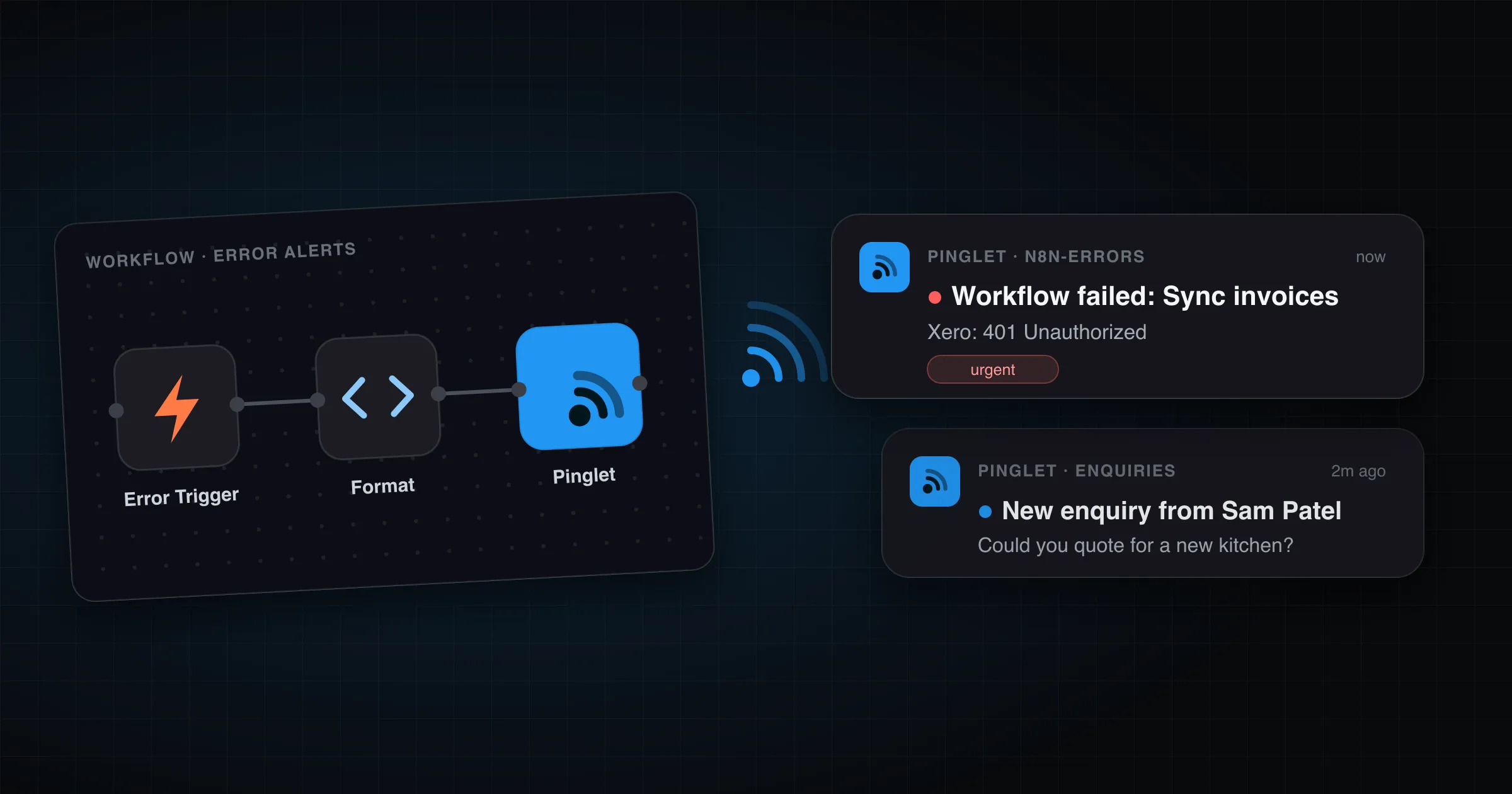
n8n workflows run in the background, which is the point of them. It also means you only find out what happened when you go and look. A form came in, an order was paid for, a sync broke at 3am: the workflow knows, and you don’t.
The Pinglet node puts the last step of a workflow on your phone as a native push notification. As of this week it’s a verified n8n community node. You can install it from the nodes panel in a couple of clicks, and that includes n8n Cloud, which doesn’t allow unverified community nodes.
What “verified” changes
Before, the Pinglet node only worked on self-hosted n8n. You had to install it by package name from Settings > Community Nodes, and on n8n Cloud the only option was a hand-built HTTP Request node.
Verified nodes are reviewed by n8n and show up in the nodes panel like the built-in ones. That’s how you install it on both n8n Cloud and self-hosted:
- Open a workflow and press N (or select +).
- Search for Pinglet. It’s under More from the community at the bottom of the panel.
- Select it, then select Install.
Only the instance owner or an admin can install it. Once they have, everyone on the instance can use it. On self-hosted n8n, installing by package name still works too. If it doesn’t show up, the n8n guide covers the settings that hide community nodes on Cloud and self-hosted.
Then add a Pinglet API credential with an API key from your dashboard. It starts with pinglet_. If you don’t have an account yet, Getting started takes about five minutes. The examples below use a namespace called acme.
How a Pinglet node works
Each Pinglet node publishes one message to a topic, such as acme/enquiries. Everyone subscribed to that topic gets the notification. Subscribing means opening the topic’s share link or scanning its QR code in the Pinglet app (App Store, Google Play). Nobody needs an n8n login, so it’s easy to send alerts to a colleague, a client or someone at home.
The fields you’ll use most:
| Field | What it does |
|---|---|
| Namespace, Topic | Where the message goes. A topic is created the first time you publish to it |
| Message | The notification text. Expressions work, so you can pull in data from earlier nodes |
| Title | Optional. Defaults to the topic name |
| Level | info, success, warning or error. Sets the colour in the app, and doesn’t affect delivery |
| Priority | silent, normal or urgent |
Under Additional Fields you can add up to three badges: short key and value pills shown on the notification card. Values can be up to 32 characters, and a longer one makes the publish fail, so keep anything open-ended out of them.
Here are three workflows worth building first.
Recipe 1: a form submission on your phone
Someone fills in your enquiry form. You want to know now, not when you next check your inbox.
- Start with an n8n Form Trigger (On form submission). Add the fields you need, for example Name, Email and Message. If your form lives somewhere else, use that service’s trigger instead, such as Typeform, Tally or a Webhook node.
- Add a Pinglet node and set:
- Topic:
enquiries - Title:
={{ "New enquiry from " + $json.Name }} - Message:
={{ $json.Email + ": " + $json.Message }} - Level:
info
- Topic:
Activate the workflow and submit the form once from its production URL. The notification arrives a second or two later.
Form fields show up in $json under the labels you gave them. If a label has a space in it, use brackets: $json["Your name"].
Recipe 2: know when a workflow fails
This is the one everybody should set up. When a production workflow breaks, n8n records the error in the executions list, and nobody looks at it until something downstream is missing.
- Create a new workflow that starts with an Error Trigger.
- Add a Pinglet node. The message starts with the name of the node that broke, so you can see where to look without opening anything. Set:
- Topic:
n8n-errors - Title:
={{ "Workflow failed: " + $json.workflow.name }} - Message:
={{ $json.execution.lastNodeExecuted + ": " + $json.execution.error.message }} - Level:
error - Priority:
urgent
- Topic:
- Save it, then open each workflow you want watched. Go to its Settings and choose this workflow as the Error workflow.
urgent breaks through iOS Focus and Android Do Not Disturb once you’ve switched that on in the app. That’s right for a payment sync, and probably too much for a workflow that tidies up a spreadsheet. If a failure can wait until morning, use normal, or make a second error workflow and topic for the less important ones.
The error workflow only fires for automatic executions: triggers, schedules and webhooks. It won’t fire while you’re testing in the editor, so to check that it works, make a production run fail on purpose. A Stop and Error node is the easiest way to do that.
Recipe 3: a quiet daily digest
Not everything deserves a buzz. A morning summary of yesterday’s orders, sign-ups or tickets is useful, but it can wait in your notification list until you look.
- Start with a Schedule Trigger that runs every day at 08:00.
- Add the node that fetches yesterday’s data, whether that’s your shop, CRM, database or a Google Sheet.
- Add a Summarize node with two fields to summarise: Count of
idand Sum oftotal(the order value). - Add a Pinglet node and set:
- Topic:
daily - Title:
Yesterday - Message:
={{ $json.count_id + " orders, £" + $json.sum_total }} - Level:
info - Priority:
silent
- Topic:
A silent notification makes no sound and doesn’t light up the screen. It sits in your notification list and the topic’s history in the app, waiting for you to look. That’s the right priority for anything you’d describe as “good to know”.
The exact field names depend on what you summarise. Run the Summarize node once and copy them from its output.
Two more ideas
- Let an AI agent decide. The Pinglet node can be attached to n8n’s AI Agent node as a tool. Describe in the agent’s prompt when it should notify you, for example “if the email is from a customer and sounds urgent”, and leave the decision to the agent. On self-hosted n8n you may need to allow community nodes as tools first.
- Hand the share link on. The node outputs the publish response, including
url, the topic’s share link. A later step can email or post that link, so whoever’s working that day can subscribe in one tap.
No node? Use HTTP Request
If your instance has community nodes switched off, an HTTP Request node does the same job. POST to https://pinglet.dev/acme/enquiries with the header Authorization: Bearer pinglet_<your key> and a JSON body such as {"title": "New enquiry", "message": "Could you quote for a new kitchen?"}. Publishing lists every field.
The full node reference, including badges and metadata, is in the n8n guide.