Monitoring a Raspberry Pi with a shell script and a heartbeat
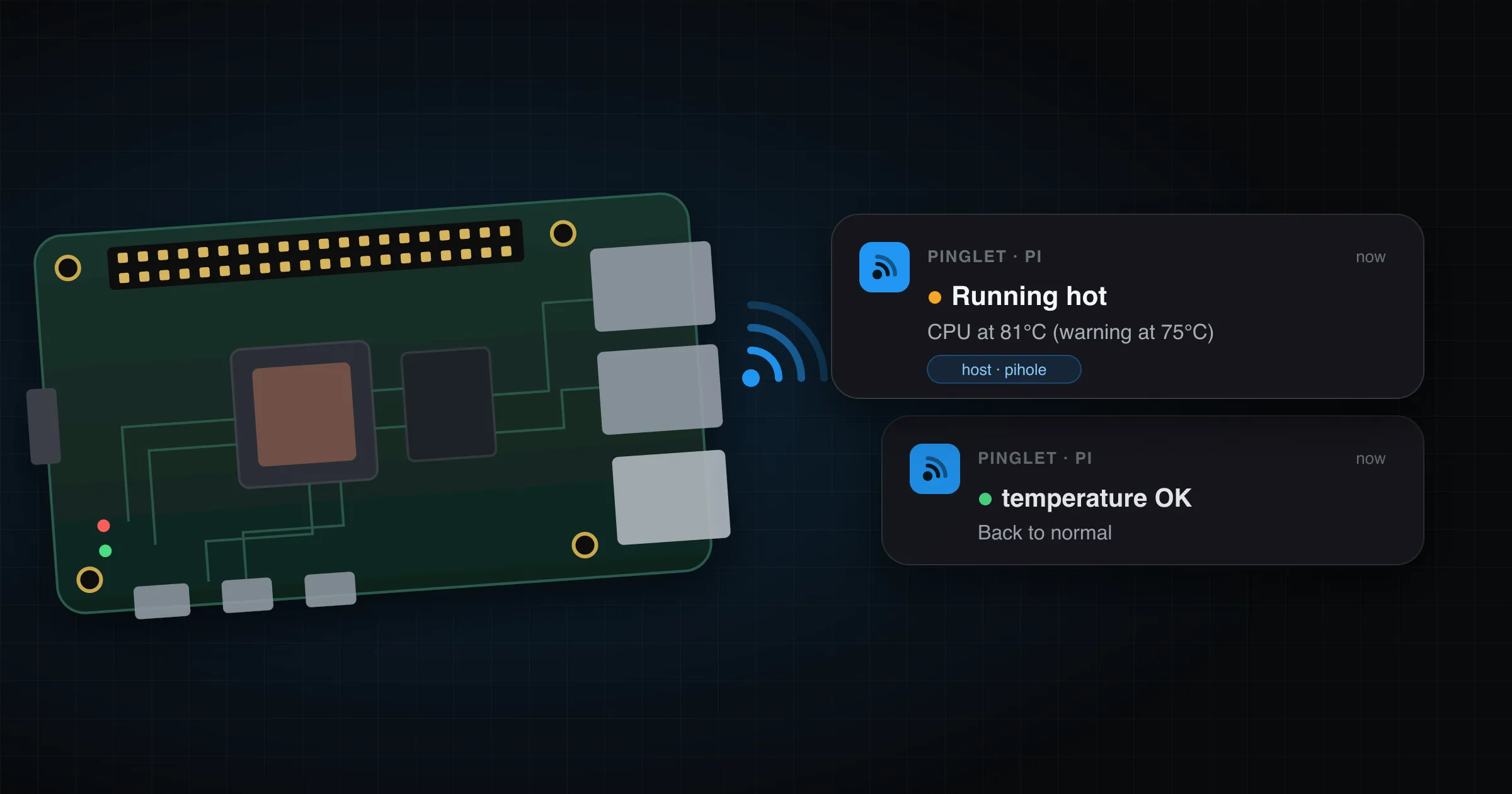
Somewhere in your house there’s a Raspberry Pi doing something you rely on: Pi-hole, Home Assistant, a backup target, a print server. It sits in a cupboard, and you only think about it when it stops working.
A Pi can go wrong in two ways:
- It’s unhealthy. It’s running hot, the disk is filling up, the power supply is sagging, the SD card has gone read-only, or a service has crashed. The Pi is still up, so it can tell you about it.
- It’s gone. It lost power, the kernel hung, or the SD card died completely. A script on the Pi can’t report any of this, because the script isn’t running either.
This post covers both, with nothing to install on the Pi beyond what Raspberry Pi OS already ships. A small bash script checks the Pi’s health and publishes to a Pinglet topic when something crosses a line. A heartbeat topic notices when the Pi stops checking in. Both end up as native push notifications on your phone.
What you’ll need
- A Pinglet namespace and publish key. Getting started takes about five minutes. The examples below use a namespace called
acme. - The Pinglet app on your phone (App Store, Google Play).
- A Raspberry Pi running Raspberry Pi OS, with
curl(installed by default).
Setup: a user and a place for secrets
The checks don’t need root, so they shouldn’t run as root. Create a system user for them with no login shell and no home directory. Adding it to the video group lets it run vcgencmd:
sudo useradd --system --no-create-home --shell /usr/sbin/nologin --groups video pi-checkNext, make a directory for the publish key that only root and pi-check can read, with an empty key file inside it:
sudo install -d -m 750 -o root -g pi-check /etc/pinglet
sudo install -m 640 -o root -g pi-check /dev/null /etc/pinglet/auth
sudoedit /etc/pinglet/auth
Put the whole header line in the file:
Authorization: Bearer pinglet_your_key_hereThe script hands this file to curl with -H @/etc/pinglet/auth rather than putting the key on curl’s command line. A command line is visible to every user on the machine through ps, while this file is readable by only two users. Typing the key into sudoedit also keeps it out of your shell history.
Part 1: the health check
The script checks five things:
| Check | Source | Alert |
|---|---|---|
| CPU temperature | /sys/class/thermal/thermal_zone0/temp |
warning at 75°C |
Disk usage on / |
df |
warning at 90% |
| Read-only root filesystem | findmnt |
urgent: usually a dying SD card |
| Under-voltage | vcgencmd get_throttled |
warning |
| Failed systemd services | systemctl --failed |
error, listing the units |
Running hot matters because a Pi 4 or Pi 5 starts throttling its CPU at 80 to 85°C. Under-voltage is the classic cause of Pi flakiness: a phone charger that can’t quite supply enough current leads to random reboots and corrupted SD cards. A failing SD card often ends up with the root filesystem mounted read-only, so a read-only root is your cue to take a backup now.
Save this as pi-check.sh:
#!/bin/bash
# Raspberry Pi health check. Publishes to Pinglet when something goes wrong,
# and once more when it clears. Run by pi-check.timer every 5 minutes.
set -u

PINGLET_URL="https://pinglet.dev/acme/pi"
AUTH=/etc/pinglet/auth                 # "Authorization: Bearer pinglet_..."
STATE=${RUNTIME_DIRECTORY:-/run/pi-check}
TEMP_WARN=${TEMP_WARN:-75}             # °C
DISK_WARN=${DISK_WARN:-90}             # % of / used
HOST=$(hostname)

# Escape backslashes and double quotes so any text is safe inside JSON.
json() { local s=${1//\\/\\\\}; printf '%s' "${s//\"/\\\"}"; }

# notify <level> <priority> <title> <message>
notify() {
  curl -fsS -m 10 "$PINGLET_URL" \
    -H @"$AUTH" \
    -H "Content-Type: application/json" \
    -d "$(printf '{"title":"%s","message":"%s","level":"%s","priority":"%s","badges":{"host":"%s"}}' \
          "$(json "$3")" "$(json "$4")" "$1" "$2" "$(json "$HOST")")" > /dev/null
}

# check <name> <bad: 0|1> <level> <priority> <title> <message>
# Alerts when a check first goes bad, and sends a quiet all-clear when it recovers.
check() {
  local flag="$STATE/$1"
  if (( $2 )) && [[ ! -e $flag ]]; then
    notify "$3" "$4" "$5" "$6" && touch "$flag"
  elif (( ! $2 )) && [[ -e $flag ]]; then
    notify success silent "$1 OK" "Back to normal" && rm "$flag"
  fi
}

temp=$(( $(< /sys/class/thermal/thermal_zone0/temp) / 1000 ))
check temperature $(( temp >= TEMP_WARN )) warning normal \
  "Running hot" "CPU at ${temp}°C (warning at ${TEMP_WARN}°C)"

disk=$(df --output=pcent / | tail -1 | tr -dc '0-9')
check disk $(( disk >= DISK_WARN )) warning normal \
  "Disk nearly full" "/ is ${disk}% full"

ro=0; findmnt -no OPTIONS / | grep -q '^ro' && ro=1
check filesystem $ro error urgent \
  "Root filesystem is read-only" "Usually a failing SD card. Back it up while you still can."

if command -v vcgencmd > /dev/null; then
  throttled=$(vcgencmd get_throttled | cut -d= -f2)
  check power $(( throttled & 0x1 )) warning normal \
    "Under-voltage" "The power supply can't keep up (get_throttled=$throttled)"
fi

failed=$(systemctl --failed --no-legend --plain | awk '{print $1}' | paste -sd, -)
check services $([[ -n $failed ]] && echo 1 || echo 0) error normal \
  "Service failed" "$failed"
It contains no secrets, so install it world-readable like any other program:
sudo install -m 755 pi-check.sh /usr/local/bin/pi-check.shWhy it doesn’t nag
A disk at 92% is still at 92% five minutes later, and a phone that buzzes every five minutes about it soon gets muted. So each check leaves a flag file in /run/pi-check when it alerts. While the flag exists, the script stays quiet. When the check passes again, the script removes the flag and sends one silent all-clear. You get no sound for it, but it shows up in the topic’s history, so the feed reads as a timeline: Running hot, then temperature OK forty minutes later.
The flags live in /run because it’s a RAM-backed tmpfs. That matters for the read-only check: when the SD card goes read-only, /var and /tmp go with it, but /run stays writable. A reboot clears the flags, so anything still wrong after a reboot alerts again, which is what you want.
If the network is down when an alert is due, curl fails, the flag isn’t written, and the script tries again on the next run.
Every value that goes into the JSON passes through the json function, which escapes backslashes and double quotes. That matters more than it looks: systemd escapes some unit names with backslashes, such as systemd-fsck@dev-disk-by\x2dlabel-boot.service. Without the escaping, a failure in one of those units would produce invalid JSON, and that alert would never arrive.
Picking priorities
Pinglet keeps two separate settings for each message. level controls how a message looks in the app, and priority controls how it arrives. The script uses them like this:
urgentis only for the read-only filesystem. That’s the one where acting in the next hour can save your data. Urgent messages are time-sensitive and can break through Focus or Do Not Disturb once you’ve switched that on in the app.normalis for everything else that goes wrong. You’ll want to know today, but it can wait until you’re done eating.silentis for recoveries. They’re good news, so there’s no reason to buzz.
The host badge shows on the notification card. If you run the same script on several Pis and publish them all to one topic, you can see at a glance which one is complaining. See Message anatomy for everything a message can carry.
Part 2: the heartbeat
None of that helps if the Pi is dead. For that you need something outside the Pi that expects to hear from it and alerts when it doesn’t. In Pinglet that’s a heartbeat topic.
In your namespace dashboard, open New topic and choose Heartbeat:
- Expect a check-in every: 5 minutes
- Grace period: 5 minutes
The topic’s page shows a check-in URL like https://pinglet.dev/v1/ping/<token>. The token works like a password, so keep it off command lines too. Put it in a curl config file next to the key:
sudo install -m 640 -o root -g pi-check /dev/null /etc/pinglet/heartbeat
sudoedit /etc/pinglet/heartbeat
url = "https://pinglet.dev/v1/ping/<token>"If the Pi doesn’t check in for ten minutes, Pinglet publishes an urgent alert to the heartbeat topic. When the Pi comes back, it sends a “back to healthy” notice. Each change sends one alert, so a Pi that’s down all weekend means one alert, not hundreds. The grace period means a brief blip on your home broadband won’t page you.
Subscribe your phone to the heartbeat topic too, using its share link or QR code, like any other topic.
Part 3: run it with systemd
A systemd timer is the modern way to run something on a schedule on Raspberry Pi OS, and it suits this job better than cron for four reasons:
- It runs as
pi-checkrather than root. - It creates the
/run/pi-checkstate directory and keeps it between runs. - It sends all output to the journal.
- It never starts a second run while one is still going.
Create /etc/systemd/system/pi-check.service:
[Unit]
Description=Raspberry Pi health check and Pinglet heartbeat

[Service]
Type=oneshot
User=pi-check
# /run/pi-check, kept between runs so the alert flags survive until reboot.
RuntimeDirectory=pi-check
RuntimeDirectoryPreserve=yes
NoNewPrivileges=yes
TimeoutStartSec=2min
# The leading "-" means a failed check never blocks the heartbeat.
ExecStart=-/usr/local/bin/pi-check.sh
ExecStart=/usr/bin/curl -fsS -m 10 --retry 3 -o /dev/null -K /etc/pinglet/heartbeat
A oneshot service runs its ExecStart lines in order: the health check first, then the heartbeat check-in. The heartbeat still means only one thing: the Pi is up, systemd is running it on schedule, and it can reach the internet. If the check script hangs, TimeoutStartSec stops the run before the heartbeat, and the missed check-in reports it.
This unit deliberately leaves out systemd’s sandboxing options. PrivateTmp= and friends write to disk when the service starts, so a read-only root filesystem would stop the service at the moment you most need the alert. ProtectSystem=strict would make / look read-only to the script all the time.
Then create /etc/systemd/system/pi-check.timer:
[Unit]
Description=Run pi-check every 5 minutes

[Timer]
OnBootSec=1min
OnUnitActiveSec=5min

[Install]
WantedBy=timers.target
Turn it on:
sudo systemctl daemon-reload
sudo systemctl enable --now pi-check.timer
To see when it runs next, use systemctl list-timers pi-check.timer. To see what it’s been doing, use journalctl -u pi-check. A failed publish shows up there with curl’s error message.
Pinglet can’t tell a dead Pi from a dead router. Either way the Pi has dropped off the internet, and if it’s running your DNS, you’ll want to know that too.
Try it
Thresholds can be overridden from the environment, so you can force an alert without heating anything up. Run the service once so systemd creates /run/pi-check, then run the script as pi-check with a temperature threshold of zero:
sudo systemctl start pi-check.service
sudo -u pi-check env TEMP_WARN=0 /usr/local/bin/pi-check.sh
That publish creates the pi topic. Find it in your pinglet.dev dashboard and open its subscribe link on your phone, or scan the QR code. Do the same for the heartbeat topic. Then clear the alert and force it again:
sudo -u pi-check /usr/local/bin/pi-check.sh                    # clears it: "temperature OK", silently
sudo -u pi-check env TEMP_WARN=0 /usr/local/bin/pi-check.sh    # "Running hot", on your phone this time
sudo -u pi-check /usr/local/bin/pi-check.sh                    # and clear it again
Always test as pi-check. If you run the script as root, it leaves root-owned flag files that the timer can’t remove.
Extending it
Each new check is one more call to check. Some ideas:
- Memory pressure: compare
MemAvailablein/proc/meminfoagainst a floor. - A specific service:
systemctl is-active --quiet pihole-FTL || bad=1, if you’d rather alert on one unit by name than on any failed unit. - SD card wear: search the kernel log for
mmcI/O errors withjournalctl -k, which catches them before the card goes read-only. Reading the kernel log needssudo usermod -aG systemd-journal pi-check. - Backups: give the nightly backup job its own heartbeat, with an interval of a day and a check-in appended with
&&, so a backup that fails is reported the same way as one that never ran.
That’s the whole setup: one script, a systemd timer, and a heartbeat topic. Your phone will hear about the Pi in the cupboard before the household does.