Get WordPress form and order alerts on your phone, not in your inbox
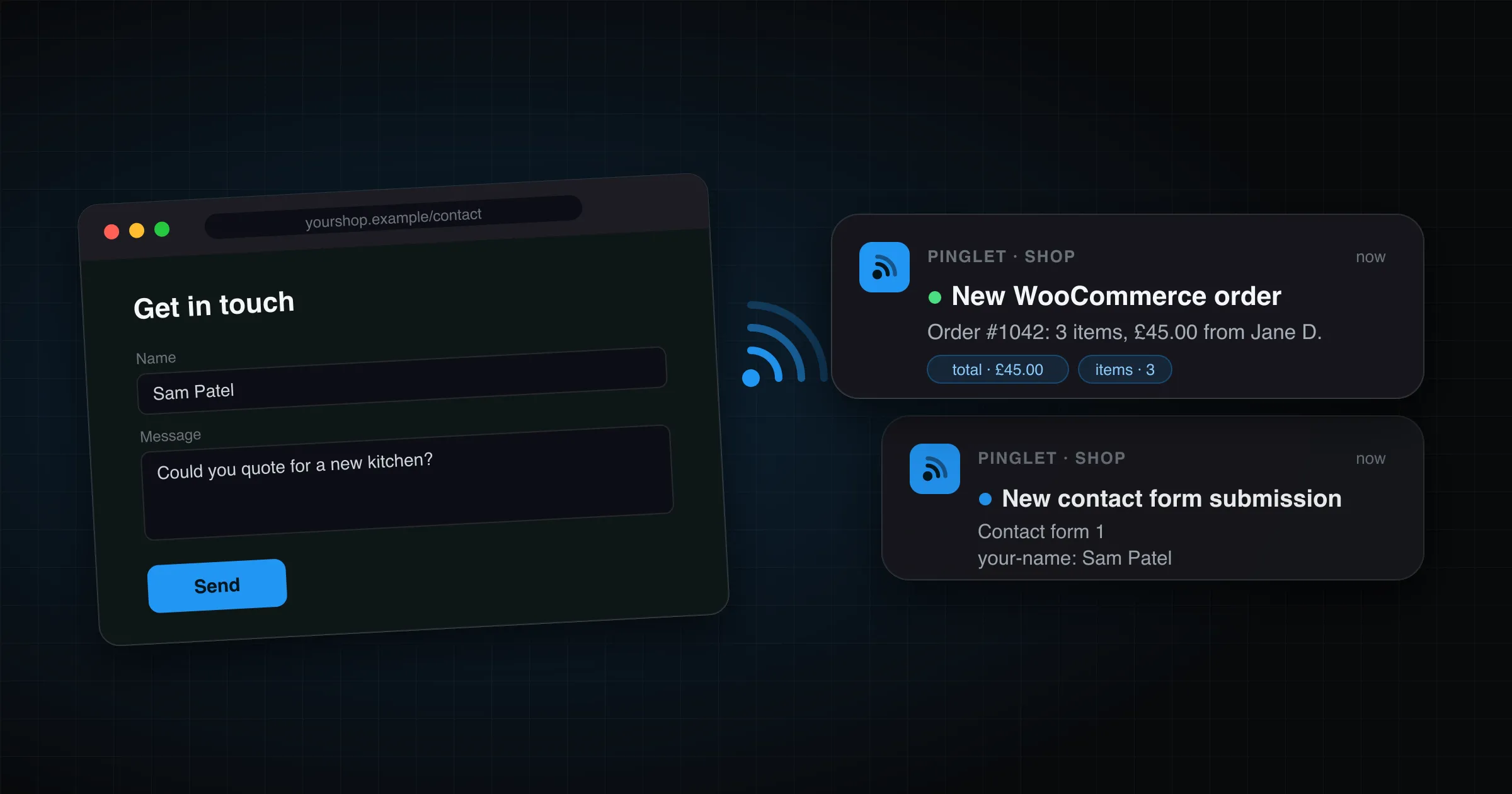
Someone fills in the contact form on your site asking for a quote. WordPress sends you an email about it. That email might arrive straight away. It might arrive in your spam folder, or sit under forty newsletters until tomorrow morning, or it might never be sent at all. By the time you reply, they’ve asked someone else.
The Pinglet plugin for WordPress sends form submissions and WooCommerce orders to your phone as push notifications instead. They arrive within seconds, on your lock screen, in an app that contains nothing but your alerts.
One thing to be clear about: this is about notifications for you, the person who runs the site. It doesn’t send push notifications to your site’s visitors.
Why WordPress email lets you down
Out of the box, WordPress sends email through PHP’s mail() function on your web host. Those messages usually go out without the authentication that modern mail providers check for, so they’re a common thing for spam filters to catch. Some hosts block outgoing mail entirely. Fixing it means setting up an SMTP plugin and DNS records, and plenty of site owners never find out they need to.
The failure is usually invisible. With WPForms and Gravity Forms the visitor sees “Thanks, we’ll be in touch” whether or not the email went out, so neither of you knows anything went wrong. Contact Form 7 is the exception: it tells the visitor “There was an error trying to send your message”, which makes them think the form is broken, and they may never try again.
And when the email does arrive, it lands in the same inbox as everything else.
How the plugin works
Pinglet is a push notification service. Your site publishes a message to a topic, and every phone subscribed to that topic gets a native push notification. The plugin does the publishing for you, triggered by the events below. None of it goes through your site’s email, so a broken mail setup doesn’t stop it.
| Integration | Sends a push when |
|---|---|
| Contact Form 7 | a form is submitted |
| WPForms | an entry is submitted |
| Gravity Forms | an entry is submitted |
| Elementor Pro forms | a form is submitted |
| WooCommerce | an order reaches Processing, which means it’s been paid for |
Each integration has its own switch on the settings page, and only runs when its plugin is active.
Setting it up
- Create a Pinglet account at pinglet.dev, make a namespace (for example
yourshop), and copy your API key. It starts withpinglet_. - In your WordPress admin, go to Plugins → Add New, search for Pinglet, then install and activate it. You can also download it from wordpress.org.
- Go to Settings → Pinglet and enter your API key, your namespace and a default topic, such as
shop. - Press Send test notification. That first publish creates the topic.
- Tick the integrations you want and save.
To get the notifications on your phone, install the Pinglet app (App Store, Google Play). Then open the topic’s subscribe link from your pinglet.dev dashboard, or scan its QR code. You don’t need an account to receive notifications. Press Send test notification again and your phone should light up.
What the notifications look like
Form submissions
The title says which form plugin it came from, such as New contact form submission. The message has the form’s name and a short summary of what was submitted, up to eight fields. You can usually tell from the lock screen whether it’s a sales enquiry or a support question.
The plugin is careful about what it sends. Fields whose names look sensitive, like password, card number or CVV, are always stripped before the notification is built. Very long values are skipped too. On Pro plans, the sender’s name, email address and phone number are added to the notification’s detail sheet in the app, and the email address is a tappable link, so you can reply from your phone.
With Contact Form 7, the plugin listens for the submission itself, not for the email. If CF7’s email fails to send, you still get the push, marked as a warning and ending with “Note: the email copy failed to send.” That’s often the first sign a site’s mail is broken.
The visitor still sees CF7’s error message, though, because CF7 thinks the submission failed. To fix that, either get your site’s email working or switch CF7’s email off (see below).
WooCommerce orders
A new order looks like this:
New WooCommerce order
Order #1042: 3 items, £45.00 from Jane D.
The total and item count show as badges on the notification. It fires when the order reaches Processing, the point where a paid order is ready to fulfil, so you don’t get pinged for abandoned checkouts. Each order notifies once, even if its status changes back and forth later.
Your visitors never wait
Notifications are sent in the background with a five-second timeout, so a slow network never slows down a form submission or a checkout.
Sharing alerts with your team
Anyone who opens the topic’s subscribe link gets the notifications, and nobody needs a Pinglet account to receive them. Send the link to whoever handles orders, or to a colleague who answers enquiries, and their phone gets the same alerts as yours.
Should you switch the emails off?
You don’t have to, and for some forms you shouldn’t. Think of the push as the alert and the email as the record.
- WPForms and Gravity Forms save every entry in WordPress, so the email is only a copy. If you only ever used it as an alert, you can turn it off.
- Contact Form 7 doesn’t store submissions, so the email is the only record. If you want push instead of email, for example because your site’s email doesn’t work, tick Send a push instead of email next to Contact Form 7 under Settings → Pinglet. CF7 stops sending its emails, so visitors see your success message instead of an error. Install Flamingo, the companion plugin by CF7’s author, as well, so submissions are still stored in WordPress. To do this for a single form only, add
skip_mail: onto that form’s Additional Settings tab instead. - WooCommerce keeps every order in its dashboard. The “New order” admin email is optional once your phone already tells you.
Beyond forms and orders
Any plugin or theme can send its own notifications through the plugin, with do_action( 'pinglet_send', ... ) or pinglet_notify(). For example, here’s how to get a quiet notification when a comment is held for moderation, in place of WordPress’s own email about it:
add_action( 'comment_post', function ( $comment_id, $approved ) {
	if ( '0' !== (string) $approved ) {
		return; // Only comments held for moderation, not approved ones or spam.
	}
	$comment = get_comment( $comment_id );

	do_action( 'pinglet_send', array(
		'title'    => 'Comment awaiting moderation',
		'message'  => $comment->comment_author . ' on "' . get_the_title( $comment->comment_post_ID ) . '"',
		'priority' => 'silent',
	) );
}, 10, 2 );
Put it in a small custom plugin or your theme’s functions.php. Then untick Email me whenever a comment is held for moderation under Settings → Discussion.
do_action is the safer of the two calls. If the Pinglet plugin is ever deactivated, nothing happens, whereas calling pinglet_notify() directly would cause a fatal error. Each notification can also set level (info, success, warning, error), up to three badges, and a topic to send it somewhere other than the default. See Message anatomy for what each field does.